Xtream Codes API vs M3U Playlist: Which Login Should You Use?
Two ways to log in to the same service. Here is which one to pick, and why.
From a fresh Fire TV Stick to live channels in about ten minutes.
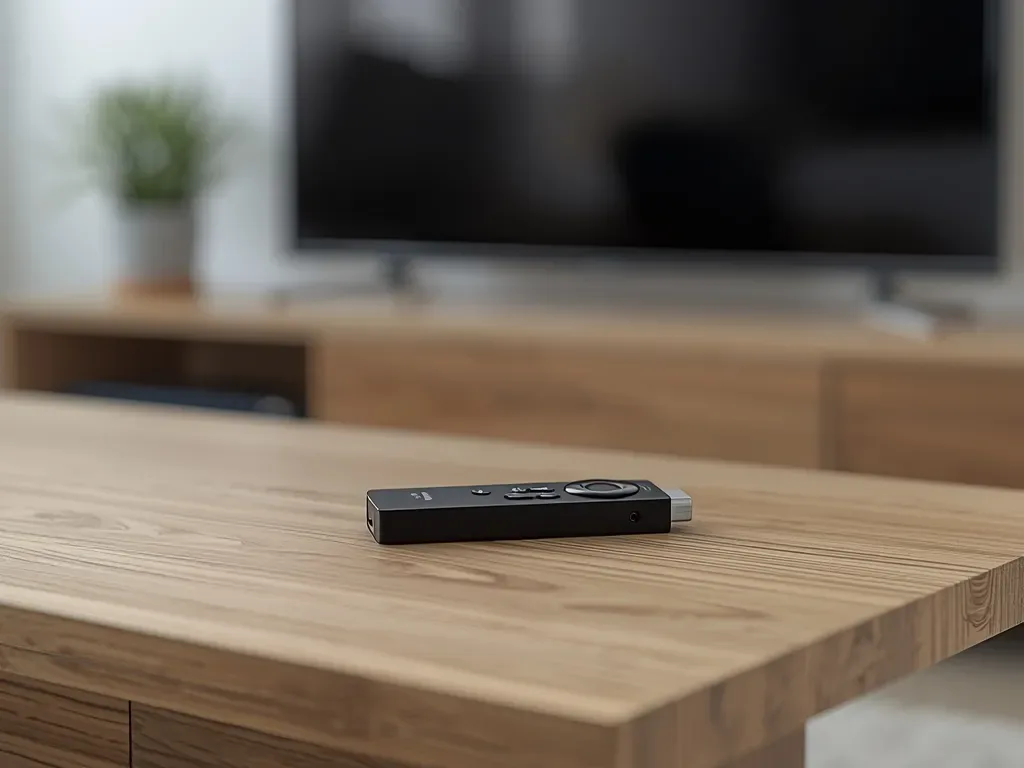
To install IPTV on a Firestick, you allow app installs from the Downloader app, use Downloader to install an IPTV player, then sign in with your Xtream Codes details. It takes about ten minutes on any Fire TV Stick, Fire TV Stick 4K or Fire TV Cube.
From the Fire TV home screen, open Find (the magnifying glass), search for Downloader and install the app by AFTVnews. Amazon documents the general process of getting apps on its devices on the Fire TV site and in its Fire TV developer documentation.
Go to Settings → My Fire TV → Developer Options → Install unknown apps, and switch Downloader to ON. If you don’t see Developer Options, open Settings → My Fire TV → About and click on the device name seven times to reveal it.
Open Downloader, type the download address of the player you chose (IPTV Smarters Pro and TiviMate are the most popular) and install it. Our support team can send you the current address on WhatsApp. Not sure which one to pick? Our comparison of the best IPTV player apps explains the differences.
Open the player, choose “Login with Xtream Codes API” (Smarters) or “Add playlist → Xtream Codes” (TiviMate), then enter your server URL, username and password exactly as sent. Why Xtream Codes rather than the M3U link? See Xtream Codes API vs M3U.
A 4K stream needs a solid connection, around 25 Mbps for that screen; our guide to internet speed for IPTV shows how to test it. For other devices, the setup guide covers Android TV, Smart TVs and Apple TV.
Two ways to log in to the same service. Here is which one to pick, and why.
Which player to install on which device, and what each one does best.
HD, FHD or 4K, one screen or four: the numbers that matter.
Ask for a free 24-hour trial on WhatsApp and test every channel on your own TV before you pay.